
How to Use Obsidian with an AI Agent — Local Vault + Cross-App Workflows
Learn how to use Obsidian with an AI agent: keep your vault as local Markdown, let a desktop agent read it across apps, tidy messy folders on-device, and run project work without leaving notes locked inside one room.
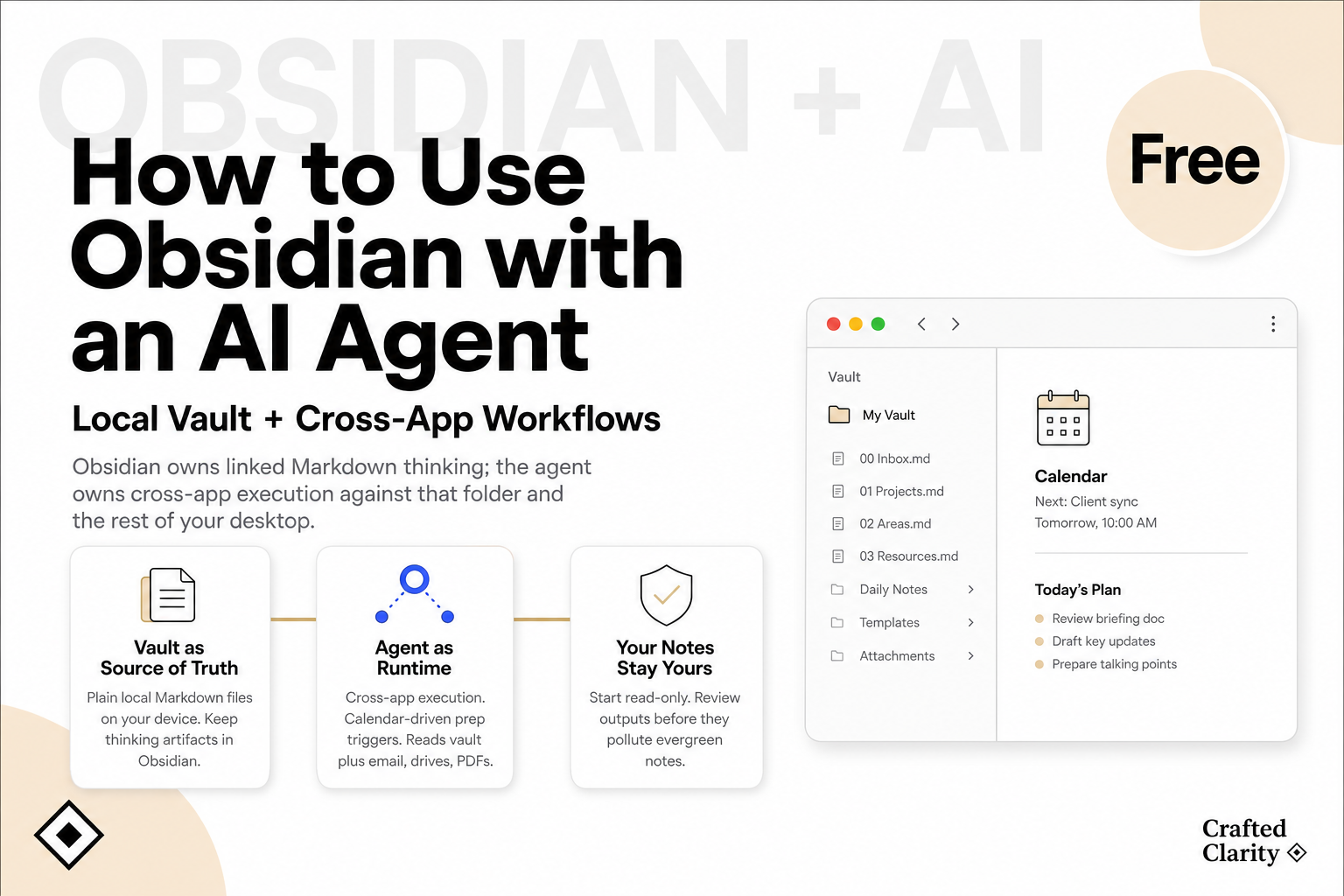
TL;DR
How to use Obsidian with an AI agent starts with a clear split: Obsidian owns linked Markdown thinking; the agent owns cross-app execution against that folder and the rest of your desktop.
Treat your <a href="/blog/what-is-obsidian-vault">Obsidian vault</a> as source of truth — plain files on disk — then authorize a desktop agent to read (and, when you allow, write) that folder for the current project or calendar block.
Most "AI inside Obsidian" setups (chat plugins, clipper interpreters) help inside the note app. Desktop agents help when the job spans email, Drive, PDFs, Downloads, and the vault together.
When neighboring folders are chaotic, an on-device <a href="/ai-file-organizer">AI File Organizer</a> can negotiate a sort plan, preview the tree, and move files only after you approve — without uploading your documents.
Obsidian alone is enough for writing and linking. Add an agent when work must leave the courtyard room and touch the rest of the house.
Popular pairings in 2026 split into in-vault plugins, desktop cowork agents, and calendar-driven OS layers — ranked below with Floatboat first for cross-app, schedule-triggered project work.
1.Why People Pair Obsidian with an AI Agent
Obsidian is excellent at what it was built for: a local, linked knowledge base. You capture ideas as Markdown, connect them with [[wikilinks]], and watch a personal graph grow. The friction appears when today's job is not "write a better note" but "ship something that needs the note and three other systems." Client context lives in the vault; the brief must also pull last week's email, a PDF on the Desktop, and a deadline on the calendar. Staying only inside Obsidian means endless copy-paste. Staying only inside a chat box means re-explaining the vault every session.
That is why operators search for how to use Obsidian with an AI agent. They are not asking Obsidian to become Notion AI. They are asking for a runtime that can see the vault as one folder among many — then act across apps while the notes stay local and durable. For a precise definition of the folder itself, start with <a href="/blog/what-is-obsidian-vault">what an Obsidian vault is</a>; this guide assumes you already have one (or can create a folder of Markdown in minutes).
The mental model that holds: traditional apps are rooms in a courtyard. Obsidian is one strong room — maybe the library. An AI agent OS is closer to wiring the whole courtyard: lights, schedules, and runners that move between rooms with permission. You do not demolish the library. You stop pretending every errand must be done from inside it.
2. What Stays in Obsidian vs What the Agent Runs Elsewhere
Keep thinking artifacts in Obsidian: evergreen notes, project pages, meeting notes you want linked, literature highlights, personal CRMs built from Markdown. Keep triggers and delivery closer to the agent layer: calendar events, outbound email drafts, multi-file renames, pulling attachments from Downloads into a client folder, assembling a brief that cites vault notes plus Gmail threads.
Community AI plugins and Obsidian's Web Clipper Interpreter are valuable inside the vault workflow — summarizing a clipped article, chatting over indexed notes, drafting in place. They optimize the library. They rarely replace a desktop agent when the task is "prepare everything for Thursday's investor call using vault + inbox + local deck folder." Different jobs, different surfaces.
Desktop agents such as Claude Cowork-style tools and calendar-driven runtimes like Floatboat share one prerequisite with Obsidian: local files. Because a vault is already a folder, you do not need a proprietary export to give an agent context. You point it at the path, scope permissions, and describe the outcome. That is the practical bridge between PKM and agent OS categories — complementary, not competitive. For how calendar-native triggers differ from chat-initiated agents, see <a href="/blog/calendar-driven-ai-vs-chat-ai">Calendar-Driven AI vs Chat-Based AI</a>.
3. Workflow: Vault as Source of Truth, Agent as Runtime
A workable loop has four moves. First, stabilize the vault path. Know which folder is the vault; keep project notes in predictable places (for example Projects/Acme/ or a Bases-filtered view). Agents fail when the human cannot find the note either.
Second, authorize the folder. In a desktop agent, grant read access to the vault directory the same way you would grant Documents or a client share. Prefer least privilege: the vault for this quarter's work, not your entire home directory, unless you truly need it.
Third, attach the job to a trigger. For ad-hoc work, open the agent and name the outcome: "Draft a one-page brief for Acme using Projects/Acme and last week's email." For rhythmic work, bind the same idea to a calendar event so prep runs before the call instead of when you remember — the pattern behind <a href="/blog/ai-meeting-preparation">AI meeting preparation</a> pipelines.
Fourth, review outputs, then write back selectively. Let the agent produce the deliverable in a working folder or draft note. You decide what gets promoted into evergreen Markdown. That keeps the vault curated instead of flooding it with every intermediate AI file.
Operators who already live in Obsidian often describe the win the same way: they still think in the vault, but they run the current project through an agent that can see the vault plus everything around it. Cross-app access is the point — email, cloud drives, local PDFs, messaging — not a fancier markdown editor.
Suggested first setup (checklist)
Create or open your Obsidian vault; confirm the folder path in your OS file manager.
Install a desktop agent that can read local folders (Mac or Windows).
Grant access to the vault path (and, if needed, Downloads or a project dump folder).
Run one concrete job: "Summarize notes in X folder into a meeting brief for tomorrow's event."
Decide a write-back rule: agent drafts outside the vault, or into an AI Inbox note you process weekly.
4. When the Vault's Neighbors Are Messy
Agents stall when the vault is tidy but Desktop and Downloads are a landfill of Document(3).pdf and untitled screenshots. Before you ask an agent to "use my project files," those neighbors often need a hygiene pass.
Floatboat's <a href="/ai-file-organizer">AI File Organizer</a> is built for that slice: a native Mac and Windows skill that negotiates a plan in chat ("by project or by type?"), reads file contents on-device, shows a nested preview tree, and moves or renames only after you click Approve — with undo if you dislike the batch. Nothing is uploaded to a Floatboat server for classification; the organizer is positioned as 100% local. It is not a replacement for Obsidian's editor or graph. It is the broom for the hallway outside the library so the agent (and you) can find the right materials on the first try.
Use it when a project dump, external drive, or Downloads folder is blocking the vault-plus-agent loop. Skip it when the only mess is inside Markdown structure — that is still Obsidian's job (folders, properties, Bases, templates).
5. Example Jobs That Work Well
Pre-meeting brief from vault notes. Tomorrow's calendar event names a client. The agent reads Projects/ClientName in the vault, pulls recent email if connected, and drafts a one-pager you skim before Zoom. Obsidian still holds the lasting notes; the agent ships the time-sensitive packet. This is the same prep logic as broader meeting pipelines, with the vault as the primary document store.
Deadline draft from evergreen research. A proposal is due Friday. Evergreen research lives as linked notes; the agent assembles a draft outline and a first pass in a working document, citing vault paths you can verify. You edit voice and claims; the vault remains the library of sources.
Cross-app project pack. Kickoff materials are scattered: a PDF on the Desktop, a Notion export, three vault notes, a Loom link in Slack. The agent collects authorized sources into one project folder and a short index note you may later refine into proper Obsidian links.
Inbox zero for files, not email. After a conference week, Downloads is chaos. Run an on-device organizer pass, then let the agent file keepers next to the right vault project page. Capture stays human; sorting becomes supervised automation.
These jobs share a pattern: Obsidian stores judgment over time; the agent compresses the last mile for this week. If your week is mostly quiet writing with two meetings a month, plugins inside Obsidian may be enough. If your week is a sequence of client-shaped deadlines, the courtyard needs runners.
A practical test helps you choose: if the unfinished work is inside a note, stay in Obsidian. If the unfinished work is gathering the note plus three other systems into a deliverable, bring an agent. That single question prevents both over-automation of writing and under-automation of prep.
6. Popular Obsidian + AI Agent Pairings, Ranked
The market for "Obsidian with an AI agent" is not one product. As of mid-2026 it clusters into three shapes: in-vault assistants (chat, search, and edits inside Obsidian), coding-agent embeds that treat the vault as a working directory, and desktop or calendar-driven agents that use the vault as one folder among email, drives, and Downloads. The ranking below orders options by how well they help a solopreneur run current projects from notes without living only inside the note app — not by who writes the prettiest paragraph in the editor.
Floatboat — Best for calendar-driven work across the vault and other apps
Floatboat ranks first when the job is not "chat with my notes" but "make Thursday's client work happen." It is a proactive agent OS on Mac and Windows: calendar events and deadlines can trigger prep and execution, local folders (including an Obsidian vault) stay in scope, and the same workspace chains into skills such as the <a href="/ai-file-organizer">AI File Organizer</a>. You keep thinking in Obsidian; Floatboat runs the courtyard — mail, files, models, and schedule — without forcing you to rebuild context in a plugin sidebar each morning. For the paradigm contrast with chat-only tools, see <a href="/blog/calendar-driven-ai-vs-chat-ai">Calendar-Driven AI vs Chat-Based AI</a>.
Skip Floatboat as the first install if you only want semantic search while writing inside Obsidian and never leave the editor. In that case start with an in-vault plugin and add a desktop runtime later.
Copilot for Obsidian — Best for in-vault chat, search, and agentic edits
<a href="https://github.com/logancyang/obsidian-copilot" rel="nofollow noopener">Copilot for Obsidian</a> (community plugin; Plus tier on the vendor site) is the most cited in-vault AI assistant: vault search from chat, optional embeddings, web and YouTube context, and expanding agent modes with tool calling. Recent positioning also emphasizes running coding-class agents such as Claude Code, Codex, or OpenCode inside the vault for knowledge work. It is the right default when your bottleneck is synthesis and drafting while Obsidian is open.
It is a weaker fit when the deliverable depends on calendar rhythm plus inbox and Desktop files you never imported into the vault. Copilot optimizes the library; it does not replace a cross-app runtime.
Claudian (and similar coding-agent embeds) — Best for vault-as-workspace with Claude Code / Codex
Plugins such as <a href="https://community.obsidian.md/plugins/realclaudian" rel="nofollow noopener">Claudian</a> embed Claude Code, Codex, OpenCode, and related CLIs so the vault becomes the agent's working directory — read, write, search, shell, and multi-step workflows with familiar coding-agent UX. Pair this with developers who already pay for Claude Code or Codex and want the same autonomy over Markdown as over a repo.
Choose something else if you are not comfortable with CLI agents, bash permissions, or write-heavy automation on personal notes. Coding-agent embeds are powerful and easy to over-grant.
Claude Cowork — Best for Anthropic-native desktop batches on local folders
<a href="https://claude.com/product/cowork" rel="nofollow noopener">Claude Cowork</a> is Anthropic's desktop (and web/mobile beta) mode for non-coding knowledge work: you assign an outcome, Claude plans and executes across folders and connectors you authorize. Because a vault is a folder, Cowork can work against it the same way it works against Documents — without an Obsidian-specific plugin. See our definition piece on <a href="/blog/what-is-claude-cowork">what Claude Cowork is</a>.
Cowork is user- or schedule-initiated inside Claude, not an Obsidian-native graph tool and not automatically tied to every calendar event unless you build that habit. Teams locked into Anthropic billing and folder batches will prefer it; operators who want calendar-as-runtime as the default should compare calendar-driven agents instead.
Smart Connections — Best for local semantic discovery while you write
<a href="https://obsidian.md/plugins?id=smart-connections" rel="nofollow noopener">Smart Connections</a> remains the reference local embedding / related-notes plugin: surface similar notes and excerpts in list or graph-style views, often with strong privacy defaults and low setup. It is excellent as a link-building and discovery layer. Treat it as complementary infrastructure, not a full AI agent for cross-app project execution. Pricing and feature packaging have shifted over time — verify the community plugin page before you budget for it.
MCP bridges (Cursor, Claude Desktop, Claude Code) — Best for tool-native agents that speak MCP
A growing set of <a href="https://modelcontextprotocol.io" rel="nofollow noopener">Model Context Protocol</a> servers and Obsidian connectors expose vault read/write/search to Cursor, Claude Desktop, Claude Code, and other MCP clients — either via Local REST API–style plugins or filesystem-direct binaries that do not require Obsidian to stay open. This path fits operators who already live in Cursor or Claude Code and want the vault as a first-class tool surface.
MCP is plumbing, not a productized prep pipeline. You still design prompts, permissions, and write-back hygiene. Prefer a dedicated agent OS when you want calendar triggers and file hygiene packaged together rather than assembled from MCP configs.
Rank | Option | Best for | Lives mainly in |
1 | Floatboat | Calendar-triggered projects across vault + apps | Desktop agent OS |
2 | Copilot for Obsidian | Chat, vault Q&A, in-app agent edits | Obsidian plugin |
3 | Claudian / coding-agent embeds | Vault as Claude Code / Codex workspace | Obsidian + CLI agents |
4 | Claude Cowork | Anthropic desktop folder batches | Claude app |
5 | Smart Connections | Local related-note discovery | Obsidian plugin |
6 | MCP bridges | Cursor / Claude tool access to the vault | MCP client + server |
You can stack layers: Smart Connections or Copilot inside Obsidian for writing, Floatboat or Cowork outside for delivery. The mistake is assuming one chat sidebar must own every job shape.
When Obsidian Alone Is Enough
Stay vault-only when your bottleneck is thinking quality, not multi-app assembly — journaling, Zettelkasten writing, course notes, long-form drafting. Stay vault-only when policy forbids any agent touching the disk, or when you are still building the habit of daily notes and links; adding an agent too early creates automation on a shaky map.
Add an AI agent when you repeatedly rebuild the same context pack by hand, when meetings fail because prep lived in five tabs, or when you already trust the vault and need execution bandwidth more than another note template. Use the ranking in §6 to match the job shape: in-vault plugins for synthesis at the keyboard, coding-agent embeds for repo-like autonomy over Markdown, Cowork for Anthropic folder batches, and Floatboat when the week is driven by calendar blocks that must pull the vault plus the rest of the desktop.
Conclusion
Learning how to use Obsidian with an AI agent is mostly architecture, not prompts. Keep the vault as local Markdown source of truth. Let a desktop agent read it with narrow permissions. Trigger jobs from the project or the calendar. Review outputs before they pollute evergreen notes. When surrounding folders are the real blocker, tidy them with an on-device organizer that previews before it moves anything. When choosing among popular pairings, start from job shape — in-vault chat, coding-agent embed, desktop batch, or calendar-driven OS — rather than from brand loyalty.
Obsidian remains the library. The agent is the system that walks the rest of the house. Use both when the work refuses to stay in one room.
FAQ
Do I need a special Obsidian plugin to use an AI agent?
Not necessarily. Many desktop agents only need the vault folder path. Plugins such as Copilot or Claudian help when you want chat or coding-agent UX inside Obsidian; folder-level agents and MCP bridges help when work spans other apps or IDEs. You can use both.
Will an AI agent overwrite my vault?
Only if you grant write access and approve destructive actions. Start read-only or write to an AI Inbox folder. Prefer tools that preview file moves — including Floatboat's <a href="/ai-file-organizer">AI File Organizer</a> — before bulk changes. Coding-agent embeds and MCP write tools deserve the same caution.
Is this the same as Obsidian Copilot or Web Clipper Interpreter?
No. Those tools primarily enhance capture and conversation inside or into Obsidian. A desktop AI agent orchestrates tasks across local files and connected apps. Interpreter can use your own model providers when clipping pages; it does not replace calendar-triggered project execution. Copilot can add agentic modes inside the vault; that is still a different center of gravity than a calendar-driven OS.
Can Floatboat read my Obsidian vault?
Yes, in the same way it can read other local folders you authorize on Mac or Windows. Point the workspace at the vault path for the relevant project or event. Pair it with the <a href="/ai-file-organizer">file organizer</a> when Downloads or project dumps need sorting first.
Which Obsidian AI agent should I pick first?
If your week is meeting- and deadline-shaped and notes are only one input, start with Floatboat. If you mostly need Q&A and drafting while editing notes, start with Copilot for Obsidian. If you already run Claude Code daily, evaluate Claudian or an MCP bridge. If you only want related-note discovery, Smart Connections may be enough without any "agent" branding.
Should I replace Obsidian with an AI note app?
Usually no, if you already value local Markdown and linking. Replace workflows that force you to redo cross-app assembly by hand — not the knowledge base that already works. For category contrast with chat-only tools, see <a href="/blog/what-is-claude-cowork">Claude Cowork</a> and calendar-driven alternatives discussed across our agent guides.
Get automation tips for your workflow
Weekly insights for non-technical professionals. No spam ever.