
How to Build an AI Agent with ChatGPT
How to build an ai agent with chatgpt works best when the workflow, files, permissions, and review steps are clearly defined.
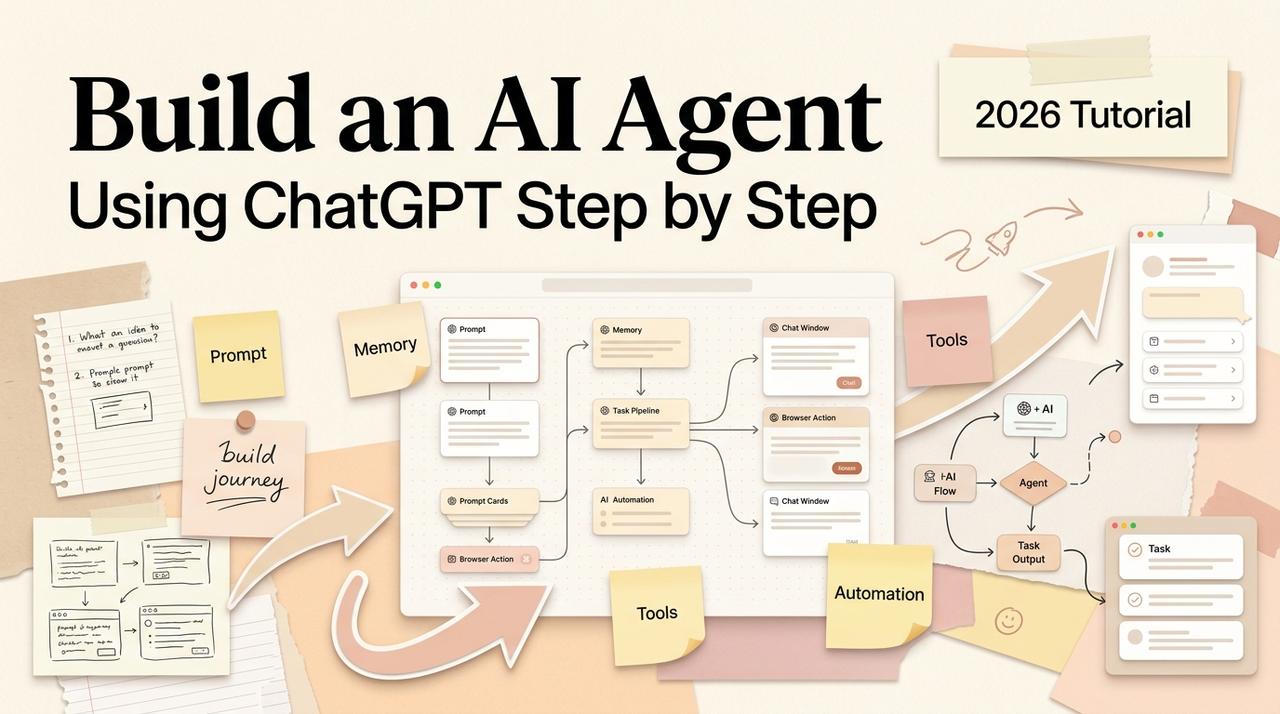
Long time no see, I'm Nova. Last Tuesday I spent about an hour turning a messy content research workflow into something that runs mostly on its own inside ChatGPT. Not with code. Not with an API. Just the Custom GPT builder, a few uploaded files, and instructions I rewrote three times before they actually worked.
I want to walk you through exactly how I did it — the setup, the files, the permissions, the testing — because how to build an AI agent with ChatGPT is one of those things that sounds more technical than it actually is, but also has more hidden steps than the typical tutorial lets on.
If you're running a small operation and want to hand off a repeatable task to ChatGPT without writing a single line of code, this is what I'd suggest trying first.
Before You Start: What ChatGPT Can Handle
Let's get something straight. A Custom GPT is not a fully autonomous agent that goes off and runs your business while you sleep. It's closer to a very well-briefed assistant who follows the same playbook every time — and that's actually more useful than it sounds.
What it can do: follow instructions you define, reference files you upload, browse the web, run code for data analysis, and generate images. According to OpenAI's official documentation on Custom GPTs, a GPT combines instructions, knowledge, and selected capabilities into a tailored experience. You configure it once, and every conversation starts with that context already loaded.
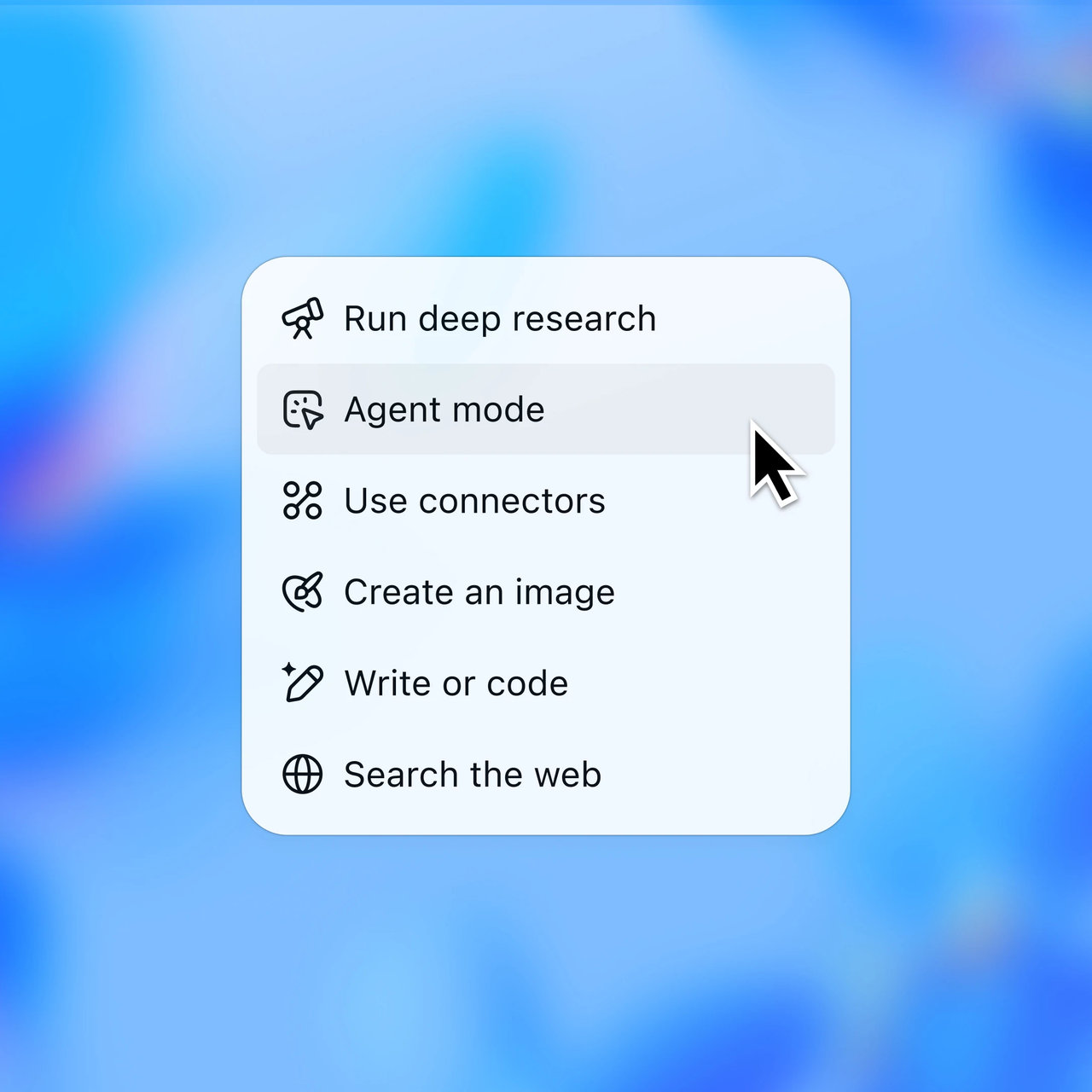
What it can't do — at least not in the Custom GPT format — is take actions on external websites, send emails on your behalf, or run background tasks. That's the territory of ChatGPT's newer Agent Mode, which is a separate feature entirely.
The sweet spot for Custom GPTs is repeatable, well-defined tasks where you'd otherwise paste the same instructions into a blank chat every time. If your task fits that description, keep reading.
Step 1: Turn One Task into a Repeatable Workflow
This is the step most people skip, and it's the one that matters most.
Before you touch the GPT builder, write down the exact task you want to automate. Not "help with content" — that's too vague. More like: "Take a rough topic brief, research it using uploaded reference documents, and output a structured outline with H2s, key points, and suggested angles."
The quality of your instructions determines the quality of your agent's output. I've built maybe a dozen Custom GPTs at this point, and the ones that actually stuck in my workflow all started with a very specific job description.
Ask yourself: what does this task look like on a regular Tuesday? What inputs do I always provide? What output format do I always want? What mistakes do I keep correcting? Write those down. That's your agent's first draft of instructions.
One thing I learned the hard way — don't try to make one GPT do five different jobs. I built a "research + writing + editing" GPT once. Turns out I overcomplicated this. Three separate GPTs, each with a narrow job, worked ten times better.
Step 2: Add Instructions, Files, and Examples
Open ChatGPT, go to Explore GPTs in the sidebar, and click Create. You'll see two tabs: Create (conversational) and Configure (manual). I always use Configure — it's faster and you get more control.
Instructions are the core. This is where you tell your GPT what it does, how it should respond, and what to avoid. OpenAI's guidelines for writing GPT instructions recommend using explicit step structures for multi-step workflows — something like "When X happens → do Y" — and separating sections with clear headings.
I'd add one thing from my own experience: include 2–3 examples of good output directly in the instructions. I paste in a sample input and the exact output I'd want, and the difference is night and day.
Knowledge files are your GPT's reference library. You can upload up to 20 files, each up to 512 MB — style guides, product docs, past work samples, data sheets. One rule: put behavioral instructions in the Instructions field, not in knowledge files. I buried a formatting rule inside a PDF once, and the GPT ignored it half the time.
Capabilities are the built-in tools you can toggle on: web browsing, code interpreter, and image generation. Turn on only what the task actually needs. Leaving unnecessary tools on can sometimes confuse the model.
Oh, one detail that's easy to miss. As of early 2026, OpenAI has retired several older models including GPT-4o and various GPT-5.1 variants. If you're building a new GPT today, you're on GPT-5.2 or newer. Worth checking, because behavior varies between model generations.

Step 3: Define Permissions and Review Points
Before you share your GPT — or start relying on it yourself — decide what it should and shouldn't be allowed to do.
Who can use it. You can keep it private, share via link, or publish to the GPT Store. For team use, Business and Enterprise plans let you share within your workspace with admin controls.
What data it can access. Your GPT only sees the files you upload and whatever the user shares in conversation. If you're connecting to external APIs through Actions, that's a different layer — read OpenAI's guide on configuring actions before touching it.
Where you want human review. I set a personal rule: for any GPT that produces client-facing output, I review before sending. The GPT drafts, I approve. For internal tasks like organizing notes — I let it run more freely. But I still spot-check weekly.
I haven't tested this myself yet, but it's worth noting: OpenAI introduced Workspace Agents in April 2026 for Business and Enterprise plans. These are an evolution of Custom GPTs that can run in the cloud and work in Slack. Custom GPTs for individual users aren't going away, but if you're evaluating this for a team, that's clearly where building agentic AI is heading.
Step 4: Test with Real Edge Cases
This is where I see the biggest gap between "I built a GPT" and "I built a GPT that actually works."
Most people test with their ideal input — clean, well-structured, best-case. That tells you almost nothing. What you need to test:
Incomplete inputs. What happens when you give it half the information? Does it ask for clarification, or make something up? A well-instructed GPT should ask. If it doesn't, add a line: "If the user doesn't provide [X], ask before proceeding."
Conflicting instructions. Give it a prompt that contradicts your instructions. See which one wins. This happens more than you'd think.
Long documents. I ran a GPT on a 40-page research doc. It got through about half before things got vague. Good to know the boundary exists before a real project depends on it.
Consistency. Run the same prompt three times. If outputs vary wildly, your instructions aren't specific enough. Tighten them. Add examples.
I rewrote my content research GPT's instructions twice based on testing alone. That loop — prompt, check, revise, repeat — is the actual work of how to build AI agents. The builder is just the interface.
When to Move Beyond ChatGPT
Custom GPTs cover a surprising amount of ground before you need to level up. But there's a ceiling.
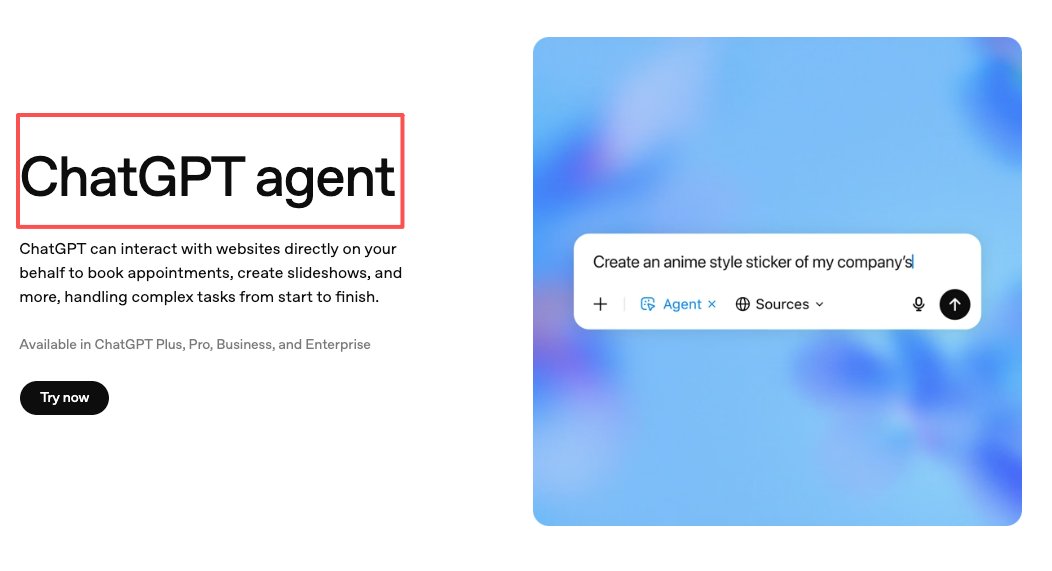
You'll probably outgrow them when you need real-world actions — sending emails, updating spreadsheets, posting to Slack — without manually approving each step. That's where Agent Mode comes in, available on Plus ($20/month), Pro, and Team plans. I checked the current pricing on ChatGPT's official pricing page — Plus has been $20/month since launch, which still feels fair for what you get.
Custom GPTs also don't maintain memory across sessions. Each conversation starts fresh. If persistent memory matters for your workflow, that's another reason to look at Agent Mode or the Assistants API.
The rule I use: if I'm spending more time working around a GPT's limitations than it's saving me, it's time to move to the next tool.
FAQ
Do I need a paid ChatGPT plan?
To create a Custom GPT, yes — you need Plus ($20/month), Team, Business, or Enterprise. Free-tier users can use published GPTs but can't build their own.
Can ChatGPT run tasks while I am offline?
Custom GPTs only work during an active conversation. Close the chat, they stop. Agent Mode can run certain tasks in the background. Workspace Agents for Business/Enterprise can run in the cloud independently.
How should I store reusable instructions?
Keep a separate text file with your GPT's instructions, versioned by date. Every time you update, save the previous version. I've rolled back twice when an "improvement" broke something. The builder has version history too, but I like having my own backup.
What permissions should I avoid giving it?
Don't connect to external APIs unless you understand what data gets sent. Don't enable web browsing for GPTs handling confidential information. And on team plans, don't skip admin controls — restrict action domains and review access quarterly.
How do I know the agent is reliable enough?
Run 10 real-world scenarios from your actual workflow. If you're correcting more than 2 out of 10, the instructions need work. Fewer than 1 in 10 — you've got something worth keeping. The biggest mistake: writing instructions once and never updating them. Treat your GPT like software.

That's my honest take on how to build an AI agent with ChatGPT. It's less about the builder and more about being clear on the task, writing good instructions, and testing with real edge cases. The tooling is genuinely accessible — you don't need to code, you just need to think carefully about what you're delegating.
I'll probably keep refining my own setup as the tools evolve. That part never really ends.
Previous Posts:
If you're still deciding whether you need a Custom GPT or a more autonomous setup, start here: What Is an AI Agent Platform? A Decision Framework for Solo Operators
Want to understand where ChatGPT workflows stop and real agent behavior begins? This breaks down the line clearly: AI Workflow vs Agent Workflow: Where the Line Actually Is
If your AI keeps forgetting context between sessions, this explains why — and what to do about it: Why Your AI Forgets Everything Between Sessions
Thinking about moving beyond Custom GPTs into workspace-style AI systems? This is a useful next step: AI Workspace Agents: What They Actually Change for Solo Operators
Once you've built your first GPT, this guide helps you turn repeatable tasks into something more reliable and scalable: How to Build AI Agents for Repeated Work
Get automation tips for your workflow
Weekly insights for non-technical professionals. No spam ever.