
AI Browser Agent vs AI Browser vs AI Workspace Compared
AI browser agents, AI browsers, and AI workspaces solve different problems. Here's which one fits which kind of solo operator in 2026.
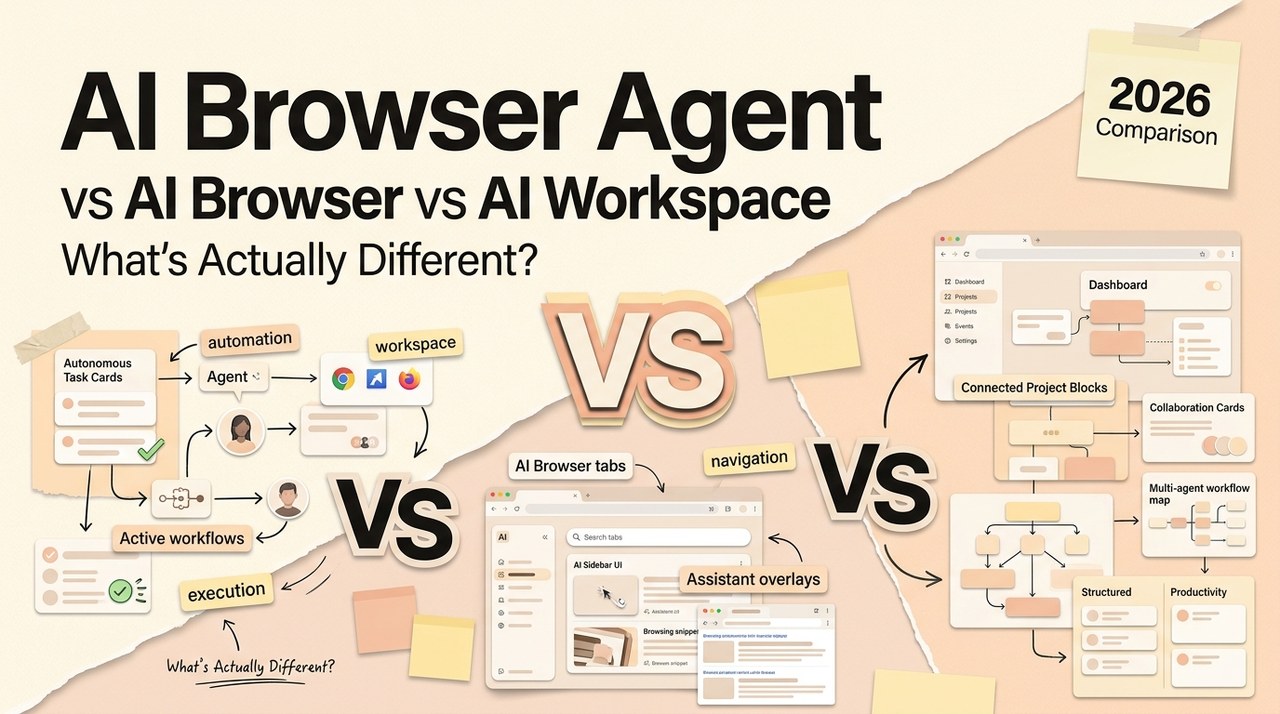
Hi, I'm Nova. I spent the last few weeks switching between three different categories of tools that all sound the same in marketing copy but do very different things in practice. Browser agent extensions. AI-native browsers. Desktop AI workspaces. Every product page uses the words "AI" and "browser" and "agent" somewhere, and after a while it all blurs together. So I sat down and tried to figure out where the lines actually are — because if you're running things solo, picking the wrong category wastes the thing you can't get back: setup time.
Three Categories People Confuse on Purpose
The companies making these tools have every incentive to blur the lines. A browser extension wants to sound like a full workspace. A full browser wants to sound like it replaces every other tool. A desktop workspace wants to claim browser-level web access.
But the design premise behind each category is fundamentally different — and that premise determines what breaks, what scales, and who it's actually for.
Category 1: Browser Agent Extensions
How They Work
Browser agent extensions sit on top of your existing browser — usually Chrome — as a layer that can see, click, and navigate web pages on your behalf. You keep your browser. You keep your logged-in sessions. The AI just… watches alongside you and takes actions when you ask.
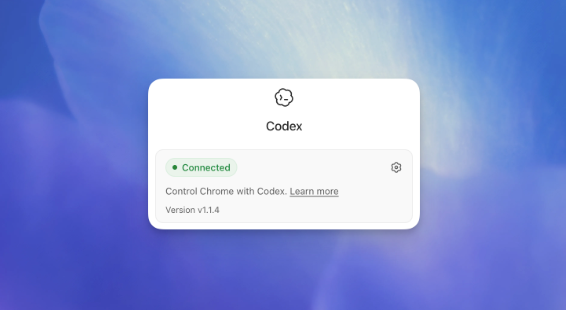
Two examples in mid-2026: Codex for Chrome (OpenAI's coding agent extension, launched May 2026) and Claude for Chrome (Anthropic's browser agent, available in beta on all paid plans).
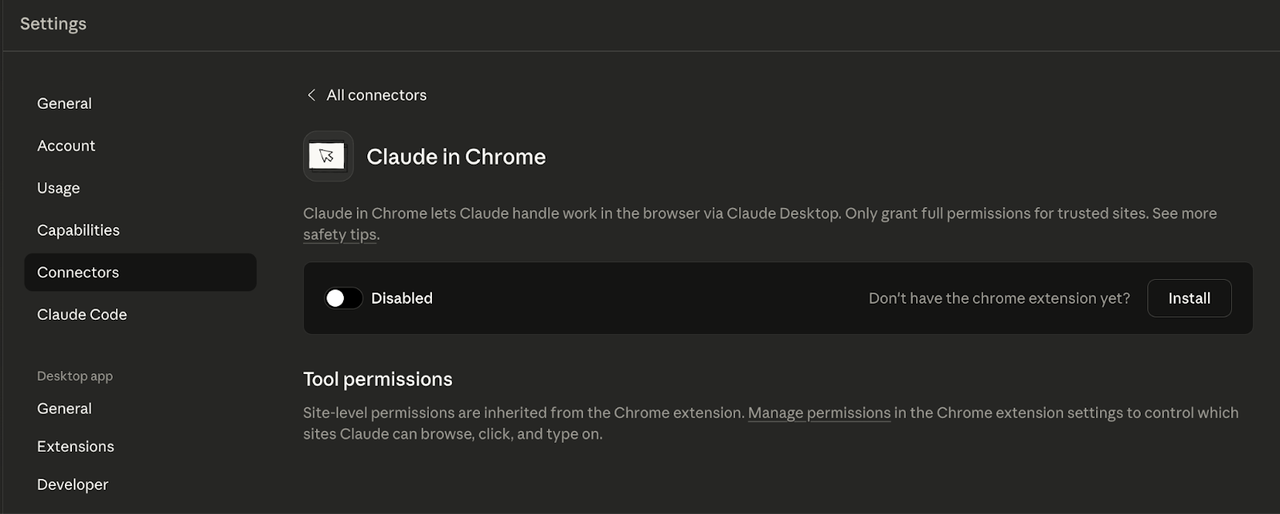
Both work as Chrome extensions that inherit your signed-in browser state. Codex organizes tasks in tab groups and runs in the background without hijacking your active tab. Claude for Chrome operates from a side panel and can manage multiple tabs simultaneously. Both ask for permission before interacting with new sites.
What They're Built For
The sweet spot is signed-in SaaS work — the stuff that lives behind a login wall. Updating a CRM record, pulling data from an internal dashboard, checking LinkedIn notifications, filling out forms across authenticated tools. These are tasks where API integrations either don't exist or are too rigid to cover the edge cases.
If most of your day happens inside web apps you're already logged into, this category meets you where you are.
Where They Break
The biggest issue is scope. An extension can only do what the browser can do. It can't touch your local files, open a desktop app, or stitch a workflow that starts in a spreadsheet on your hard drive and ends in a Google Doc. It's browser-in, browser-out.
Security is genuinely tricky here. Researchers have already documented prompt injection vulnerabilities in browser agent extensions — malicious page content can potentially redirect what the agent does. Both OpenAI and Anthropic have added confirmation steps, but the attack surface is real and evolving.
Also worth knowing: Codex for Chrome is not yet available in the EU or UK as of May 2026. OpenAI says it's coming, no date given. If you're in those regions, you're limited to the in-app browser for now.
And both extensions eat through your subscription usage faster than regular chat. I haven't tested this part extensively enough to give exact numbers, but it's something I've seen flagged consistently.
Category 2: AI-Native Browsers
How They Work
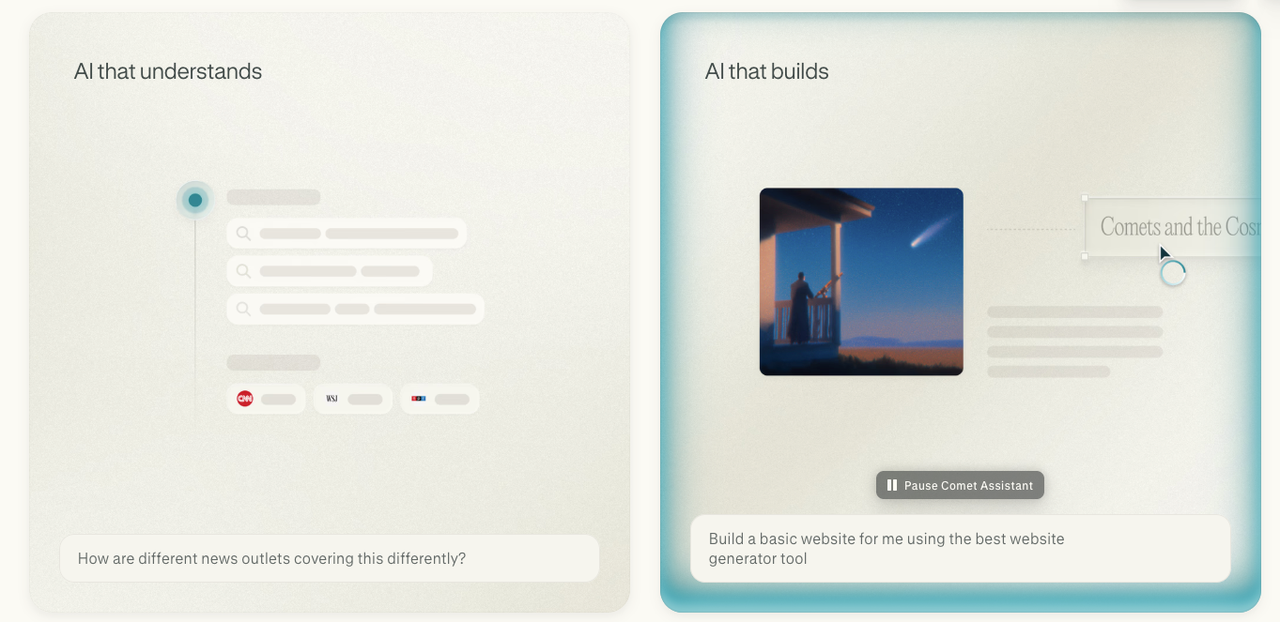
These are standalone browsers — you download and install them — where AI isn't bolted on as an extension but woven into the browsing experience from the start. The AI understands which tab you're on, remembers what you researched yesterday, and can execute multi-step tasks across pages.
Three in the running right now: Atlas (OpenAI's ChatGPT-powered browser, launched on macOS in late 2025), Comet (Perplexity's AI browser, free on all platforms as of 2026), and Dia (from The Browser Company, the team behind Arc, now owned by Atlassian).
All three are built on Chromium, so Chrome extensions mostly carry over. But the AI layer runs deeper than any extension can reach — it sits in the navigation bar, has access to cross-tab context, and maintains persistent memory between sessions.
What They're Built For
If your work is research-heavy and browser-centric — reading, comparing, summarizing, pulling information from multiple sources — an AI browser collapses a lot of the tab-juggling into something faster.
Comet's in-page assistant is genuinely useful for content research. Dia's "Skills" system lets you build reusable AI workflows scoped to specific pages. Atlas carries ChatGPT's memory into your browsing, so context compounds across sessions.
Where They Break
The moment you need to work outside the browser, these tools hit a wall. Local files, desktop apps, offline workflows — none of that is in scope. You're still switching to another tool for anything that isn't a web page.
Platform coverage is uneven. Atlas is macOS-only with no announced Windows date (OpenAI has said it'll merge into a combined super-app with ChatGPT and Codex, but timelines are vague). Dia is also macOS-only. Comet is the most broadly available — Mac, Windows, iOS, Android — but its agentic automation still feels rough on anything complex.
And switching your entire browser is a big ask. Your muscle memory, saved passwords, extension setup — that transition cost isn't zero. I tried Comet for about a week and kept reflexively opening Chrome.
Category 3: Desktop AI Workspaces
How They Work
Desktop AI workspaces are standalone applications — downloaded to your Mac or Windows machine — that sit above your browser, your files, and your local apps. Instead of AI living inside one tool, it becomes the coordination layer across everything on your computer.
The AI doesn't just see web pages. It can access local files, connect to multiple services (Google Drive, Slack, email), and chain steps that span different tools into a single automated workflow.
I'm describing the category here, not a specific product, because this space is early and moving fast.
What They're Built For
Cross-app work. The kind of day where you start by reading a PDF, then pull data from a web page, then draft something in a doc, then send it somewhere. If your work regularly crosses the boundary between browser and desktop, this category is structurally designed for it.
Some workspace tools also offer persistent context engines that adapt to how you work over time — not just what you ask in the moment.
Where They Break
Let me be honest: this category is the newest and the roughest. Most of these tools are early-stage, and the "AI learns how you work" promise is easier to pitch than to deliver. I've put maybe three or four hours into this category so far, and I want to push it a bit before saying anything definitive.
The setup cost is higher than an extension or even a new browser. You're downloading an app, connecting accounts, configuring workflows. For someone who just wants AI help with the thing they're doing right now, this is more overhead than necessary.
And desktop workspaces are inherently tied to a specific machine. If you switch between a laptop and a desktop, or work from your phone sometimes, the "everything in one place" premise gets complicated.
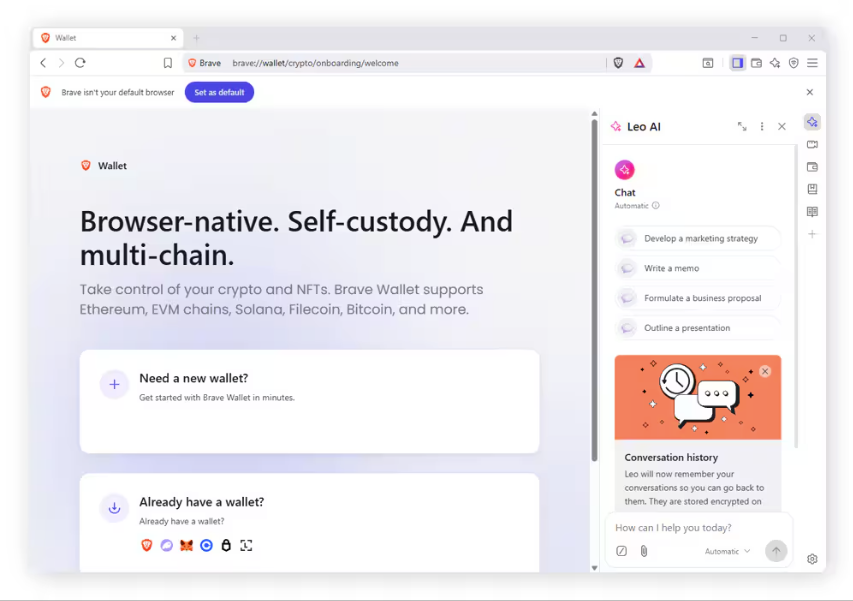
Side-by-Side: Coverage, Context, and Control
Here's how the three categories compare on the dimensions that actually matter for daily work:
Which One Fits Which Solo Operator
This is the part I actually care about. Not "which is best" — that depends entirely on your day.
Heavy in signed-in SaaS dashboards → extension
If you spend most of your day in Salesforce, Google Workspace, LinkedIn, or internal tools — and the friction is in the repetitive clicking, not in the tool-switching — a browser agent extension is the simplest path. You don't change your setup. You just add a layer on top.
Doing most thinking and research in the browser → AI browser
If your work is reading-heavy — comparing sources, summarizing long pages, pulling insights from multiple tabs — and you rarely need to leave the browser to get things done, an AI-native browser removes friction that extensions can't.
Cross-app work spanning files, browser, and local apps → workspace
If a typical task involves pulling from a PDF, checking a web page, editing a local document, and sending something through a connected service — and you're tired of being the glue between five apps — a desktop workspace is built for that shape of work.
Combining categories without paying twice
Here's the real answer for most solo operators I talk to: you'll probably end up using two of these. That's not a cop-out. It's the practical reality.
An extension for the SaaS dashboard work plus an AI browser for research. Or a desktop workspace for the heavy cross-app flows plus an extension for quick browser tasks. The categories aren't mutually exclusive, and the costs mostly overlap — the extension is usually bundled with a subscription you already have.
The question isn't "which one replaces the others." It's "which combination covers my actual workflow with the least wasted setup."
What None of Them Solve Yet
Context handoff between devices. You can't start something on your desktop workspace and pick it up on your phone's AI browser. The context lives in one place.
Security at the level solo operators need. Every category has documented prompt injection risks — researchers have shown how malicious page content can hijack browser AI agents. For a solo operator handling client data, that's not theoretical.
Reliable agentic execution on complex tasks. All three categories promise multi-step automation. In practice, reliability drops off fast past three or four steps. I've had better results using these tools as planners rather than autopilots.
Pricing transparency for heavy use. Browser agent work eats through usage limits faster than regular AI chat, and most pricing pages don't make that clear upfront.
FAQ
Q: Can I use a browser agent extension and an AI browser at the same time?
Yes. The extension runs inside Chrome, the AI browser is a separate app. They don't conflict. The cost overlap is usually small — the extension is bundled with your existing AI subscription, and several AI browsers (like Comet) are free.
Q: Which category is safest for handling client data?
None of them are enterprise-grade for sensitive data in mid-2026. Researchers have found prompt injection vulnerabilities across all three categories. My approach: I use AI tools for thinking and organizing, but handle anything involving client credentials or financial data manually. Worth checking each tool's official security documentation before putting real data through it.
Q: I'm in the EU/UK — which options work right now?
Claude for Chrome works in the EU/UK. Codex for Chrome does not — no timeline given. All three AI browsers are available, though Atlas and Dia are macOS-only. Comet is probably the most accessible option across regions and platforms right now.
That's my honest take on where the three categories stand right now. The lines will keep blurring — OpenAI's already announced plans to merge Atlas, Codex, and ChatGPT into one app. But the structural differences are real, and matching the right category to your actual workday saves a lot of trial-and-error.
I'm still experimenting. That part never really ends.
Previous Posts:
Why your AI workflow feels fragmented: the real bottleneck isn’t the model — it’s the way tools are stitched together
Browser agents vs AI workspaces: understanding the difference between predefined workflows and context-aware agents
How to stop context switching when your work lives across tabs, files, and AI tools
The new AI model just dropped — should you switch? A practical take on why most solo operators overestimate the gains
Claude Code on Linux and the shift from browser-based AI to terminal-native workflows
Get automation tips for your workflow
Weekly insights for non-technical professionals. No spam ever.